Rules, from the beginning
Tell Simple Schematics what unfamiliar saved data means and what a block or entity costs.
What is a rule?
Section titled “What is a rule?”A schematic can contain more than block shapes. A machine may save its name, mode, inventory and energy. Simple Schematics needs to know which values are settings, which are stored resources, and which items pay for the build. A rule supplies those exact answers on the server.
You usually need a rule when a diagnostic says needs a rule. Ordinary supported blocks already have built-in handling. Rules are JSON: plain text with quoted names, colons, lists in square brackets and objects in braces.
The steps below use the names displayed on action buttons, including Add rule, Save and Delete. The page-navigation arrows show their names on hover. Action names are also available to Minecraft’s narrator.
Choose the right kind of rule
Section titled “Choose the right kind of rule”| What you want to change | Template | JSON target |
|---|---|---|
| A machine’s saved name, mode, inventory or energy | Data | block_entity: the saved block-entity type ID |
| The items a block costs in Survival | Block | block: the block ID |
| A decoration or vehicle’s cost, extra saved fields or links | Entity | entity: the entity type ID |
A machine can need two separate rules: one Data rule describing its saved fields and one Block rule describing its construction cost. Do not combine block_entity and block in one JSON object. An Entity rule can combine its data, cost and link policies in one object.
| Name or ID | Example | Where it belongs |
|---|---|---|
| World rule name | tutorial.stone_cost | The editor’s Rule name box. A label you choose. |
| Block ID | minecraft:stone | The block target of a cost rule. |
| Block-entity type ID | minecraft:chest | The block_entity target of a data rule. This can differ from the block ID. |
| Entity type ID | minecraft:minecart | The entity target, rather than one particular entity’s UUID. |
| Item ID | minecraft:cobblestone | The item in a cost entry. This can differ from the target’s ID. |
minecraft: identifies vanilla content. A mod normally supplies its own namespace, such as somemod:. Names beginning examplemod: in this guide are illustrative placeholders: replace them with real installed IDs before using those examples.
Your first rule: a safe cost exercise
Section titled “Your first rule: a safe cost exercise”This example uses real vanilla IDs, so you can enter it exactly. It changes stone’s Survival cost to two cobblestone per stone block. Try it in a separate world with a small schematic containing stone and a clear build site. This is a learning exercise, not a recommended server economy.
- As an operator, press V and choose Rules from the Library or Settings.
- Click the Block template below the rule list to create a block-cost rule.
- Set Rule name to
tutorial.stone_cost. This name labels the world rule; it is not the target block ID. - Select all text in Rule JSON and replace it with the following:
{ "block": "minecraft:stone", "cost": [ { "item": "minecraft:cobblestone", "count": 2 } ]}- Click Save. Look for Saved. The rule applies now. and the rule’s Applies status.
- Return to Materials and refresh. For three stone blocks that are not already fulfilled, the cost is six cobblestone. Existing matching stone blocks cost nothing again.
- After the exercise, select that world rule, click Delete and confirm. Stone returns to its normal handling unless another active rule targets it.
More complete examples with vanilla IDs
Section titled “More complete examples with vanilla IDs”These examples use installed vanilla IDs. Use them separately in a practice world, give each world rule its own name, and remove it afterward if you do not want the altered costs.
One cost for several blocks
Section titled “One cost for several blocks”Name this rule tutorial.decorative_stone. It charges one cobblestone for each newly placed stone, andesite or diorite block. Delete the earlier stone-cost exercise first so the stone target is not duplicated.
{ "block": [ "minecraft:stone", "minecraft:andesite", "minecraft:diorite" ], "cost": [{ "item": "minecraft:cobblestone", "count": 1 }]}A design with four of each block needs twelve cobblestone if none is already fulfilled. The rule changes the input cost, not the resulting block types. Overlapping target lists conflict for the duplicated target even if their rule names differ.
A cost for a complete door
Section titled “A cost for a complete door”Name this rule tutorial.oak_door. It requires six oak planks for one complete oak door:
{ "block": "minecraft:oak_door", "cost": [{ "item": "minecraft:oak_planks", "count": 6 }]}Three complete doors need eighteen planks, rather than charging the upper and lower halves separately. The schematic still needs both halves; a cost rule does not repair an incomplete door or bypass placement checks.
A complete vehicle cost
Section titled “A complete vehicle cost”Name this Entity rule tutorial.minecart. It charges five iron ingots for each new plain minecart:
{ "entity": "minecraft:minecart", "cost": [{ "item": "minecraft:iron_ingot", "count": 5 }]}Two new minecarts cost ten ingots. This targets plain minecarts, not chest minecarts or other types. An entity cost replaces its complete automatic material cost; it does not invent missing entity support or make living mobs automatic work.
Find real IDs and saved field names
Section titled “Find real IDs and saved field names”The easiest starting point is the loaded schematic itself. Open Materials → Problems, select the relevant problem and click Add rule. The editor fills in a target, suggested name and fields from that schematic.
For a block-data problem, it starts common item/loot/energy/fuel fields under contents and other fields under settings. That is a starting guess. Move any other stored resources to contents before saving. A mod can use any name for its energy or inventory.
For example, consider an imported chest with CustomName, Items and an extra PrivateEnergy field. The editor initially guesses PrivateEnergy is a setting. If that field stores energy, move it to contents:
{ "block_entity": "minecraft:chest", "settings": ["CustomName"], "contents": ["Items", "PrivateEnergy"]}Ordinary vanilla chests do not save PrivateEnergy; this is an illustrative extra field. Use the actual fields from your schematic, rather than adding it to an ordinary chest rule.
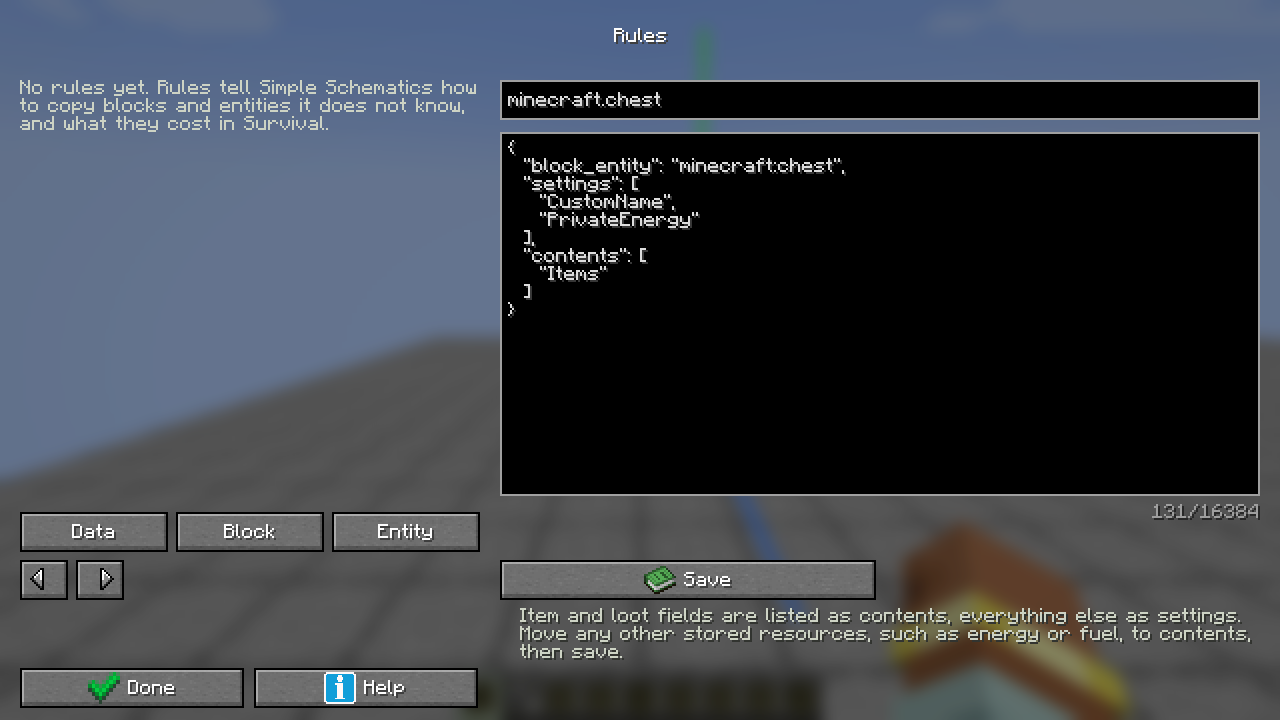
If you still have the original machine in a world, an operator can inspect its saved data. For a machine at coordinates 10, 64, 20, enter:
/data get block 10 64 20Replace those coordinates with the machine’s actual position. The returned id is its block-entity type ID. The block ID shown for the targeted block in Minecraft’s debug screen can differ from this type ID. Use the type ID for block_entity and the block ID for block cost rules.
Inspect a known entity with a selector that uniquely identifies it. For the nearest armor stand, for example:
/data get entity @e[type=minecraft:armor_stand,sort=nearest,limit=1]Inspect a representative source with its real settings and resources present: empty/default data may omit fields. A live machine can also differ from an older schematic. The prefilled schematic fields are the relevant starting point for that import. Consult the mod’s documentation or source to establish what an unfamiliar field stores.
| What a field stores | Usual classification | Example |
|---|---|---|
| A display name or selected operating mode | settings | CustomName or Mode |
| An inventory, energy, fuel or another stored resource | contents | Items, Energy, Fuel or a mod-specific field |
| A changing progress counter | Classify as settings or contents first. ignore_when_comparing affects saved snapshots, not Materials/paid-build fulfillment | Progress that changes while the machine operates |
| A reference to another entity or world location | An entity link policy or a suitable addon integration | Owner UUID or a saved home position |
The names alone do not prove what a field means. Energy might be obvious, but a mod can put all of its saved resources inside one differently named compound. Classify that outer field by what it contains. Do not move inventory or energy into settings simply to make a problem disappear.
Block data: settings and contents
Section titled “Block data: settings and contents”A block_entity rule classifies saved fields for that block-entity type. Every saved field must be covered by settings or contents. Unknown fields still block the operation. A rule replaces built-in data handling for its target, so include all required fields rather than only the new troublesome one.
A vanilla chest normally works without any rule. The following complete example mirrors its basic container field classifications; use it to understand the format, not as a requirement for ordinary chests:
{ "block_entity": "minecraft:chest", "settings": ["CustomName", "Lock"], "contents": ["Items", "LootTable", "LootTableSeed"]}A Creative paste can preserve the name and lock while leaving the chest empty when Copy stored contents is off. A new Survival chest never copies its saved contents. A modded or modified chest with extra fields still needs those fields classified too. A rule naming a field does not set its value; it copies the corresponding value already in the schematic when allowed.
| Field | Meaning |
|---|---|
| settings | Always copied: configuration, names or modes that you intend to preserve. |
| contents | Copied only with Creative’s Copy stored contents. Never copied into new Survival builds. |
| ignore_when_comparing | Exclude named fields from saved-snapshot comparisons. Materials and paid-build fulfillment still compare preserved configuration. This does not authorize copying an unlisted field; classify it as settings or contents too. |
Here is an illustrative machine example. The examplemod IDs and fields are placeholders: replace them with installed IDs and fields you have actually inspected.
{ "block_entity": "examplemod:crusher", "settings": ["Mode", "Facing", "CustomName", "Progress"], "contents": ["Items", "Energy"], "ignore_when_comparing": ["Progress"]}Mode, Facing, CustomName and Progress are copied as settings. Items and Energy are copied only when allowed by Creative’s contents option; Survival excludes them. Progress is excluded from saved-snapshot comparisons by ignore_when_comparing. Use that last choice only for a counter the machine legitimately changes by itself, not inventory, energy or other valuable stored resources.
Rules do not understand arbitrary private coordinates or rewrite a machine’s saved links. Copying a field called Facing is not a promise that the mod’s private field will rotate correctly. Use the mod’s integration, fresh defaults or manual placement when preserving that data needs behavior beyond copying exact fields.
Material costs and remainders
Section titled “Material costs and remainders”A block rule sets the cost of the complete block group. For a door or bed, that means the group rather than charging both halves independently. It takes a separate rule from block_entity data handling.
The first exercise is a fully usable example. To request multiple materials, add more entries to cost. Each item must exist in the server’s item registry; count must be 1 to 4096. There can be up to 64 cost entries.
A cost item that leaves an empty container can name a remainder. This illustrative machine rule consumes two iron ingots and a lava bucket, returning an empty bucket:
{ "block": "examplemod:crusher", "cost": [ { "item": "minecraft:iron_ingot", "count": 2 }, { "item": "minecraft:lava_bucket", "count": 1, "remainder": "minecraft:bucket" } ]}Replace the placeholder target before using it. The rule sets construction inputs; it does not fill the resulting machine with lava. A waterlogged block still adds its normal water-bucket requirement. A cost rule does not rewrite your source schematic.
Entities and links
Section titled “Entities and links”An entity rule can set data classifications, link policies, its complete cost, or a combination. Fields saved by a fresh default entity count as settings. Common item/loot fields stay contents unless explicitly classified as settings; additional fields must be listed.
Links refer to another entity or a world position. Choose what to do when a saved entity points somewhere that will not exist in the new build:
| Policy | Result |
|---|---|
| remap | Point a UUID link at the matching entity in the same pasted group; stop if no match exists. |
| clear | Remove the field. For Brain, forget remembered positions and targets. |
| remap_or_clear | Remap when a matching pasted entity exists, otherwise clear. |
For an illustrative custom cart, the following keeps an internal Owner link when possible, clears a saved home position, separates its inventory, and charges one cart item. These examplemod IDs require replacement.
{ "entity": "examplemod:cart", "settings": ["CustomMode"], "contents": ["Items"], "links": { "Owner": "remap_or_clear", "HivePos": "clear" }, "cost": [{ "item": "examplemod:cart", "count": 1 }]}You cannot set a policy for UUID or Passengers. Passengers remain a group. Entity costs do not turn living mobs into automatic Survival work: living mobs still belong to the manual checklist.
Ship a rule in a datapack
Section titled “Ship a rule in a datapack”In-game world rules are stored under the world folder at data/simpleschematics/rules.json. Use the editor for world rules. A datapack instead stores each rule as its own JSON file:
| World rule | Datapack rule |
|---|---|
| Made in the in-game editor by an operator | Written as a JSON file by the world/server/modpack owner |
| Saved changes apply immediately | File changes apply when the pack loads or /reload runs |
| Overrides a datapack rule for the same target | Provides reusable defaults for a world or modpack |
| Stored together in the world’s rules.json wrapper | Each rule is its own object under data/<namespace>/simpleschematics/rules/ |
Your world/└── datapacks/ └── simple_rules/ ├── pack.mcmeta └── data/ └── tutorial/ └── simpleschematics/ └── rules/ └── stone_cost.jsontutorial is your datapack namespace. Put the first exercise’s JSON in stone_cost.json. For Minecraft 1.21.1, put this exact metadata in pack.mcmeta:
{ "pack": { "pack_format": 48, "description": "Simple Schematics tutorial rules" }}For Minecraft 1.20.1, use the same metadata but change pack_format to 15. Those versions inherit their release family’s data-pack format: 1.21 uses 48 and 1.20 uses 15. These numbers are data-pack formats, not resource-pack formats.
Run /reload as an operator. Check /datapack list enabled for the pack; if it is available but disabled, enable it with /datapack enable "file/simple_rules" and reload. Inspect Rules to confirm it appears as a Datapack rule and says Applies. Remove the tutorial world rule first if you want the datapack version to take effect, because a world rule overrides it.
You can target a list of IDs instead of one string, for example "block": ["minecraft:stone", "minecraft:andesite"], if the same rule is appropriate for every target. Each file still names exactly one target kind.
Select Copy rule to copy a datapack rule into the editor as a world rule. Give it a world-rule name and Save. The world rule then overrides a datapack rule for that same target. Editing the copy does not alter the datapack file.
To move a working world rule into a pack, copy only its Rule JSON into the pack’s individual rule file. The world’s rules.json includes a storage wrapper; that whole file is not a valid individual datapack rule. Once the pack is enabled, delete the world copy if you want the pack’s version to apply.
Edit, replace and remove rules
Section titled “Edit, replace and remove rules”- Select the existing world rule in the left-hand list. Its name and JSON appear in the editor.
- Change the JSON while retaining the rule name to replace that same world entry. Creating another name for the same target instead can cause a conflict.
- Click Save and confirm both the result message and the row’s Applies status.
- Return to Materials and refresh. Check its Problems tab as well as the material quantities.
- To remove the rule, select it, click Delete and read the confirmation. Removal is live and can stop a build using that target.
Read-only players can inspect status and source, then ask an operator to make the change. On a server, editing a client-side JSON file does not change the server’s rules.
Understand rule status and errors
Section titled “Understand rule status and errors”| Status | What to do |
|---|---|
| Applies | This rule is active. Recheck Materials and its actual target. |
| Overridden | A world rule takes priority over this datapack rule for the same target. |
| Conflict | Same-source files name the same target. Resolve the duplicates; neither applies for the conflicted target. |
| Invalid | Read the row’s diagnostic/server log. Correct JSON, unknown fields, IDs or invalid combinations. |
| Not installed | None of the target IDs are installed. Optional-mod rules can remain unused. |
- A world-rule name uses 1 to 64 lowercase letters, digits, dots, underscores or dashes.
- Use double quotes and remove trailing commas. JSON does not accept comments.
- Name exactly one of
block_entity,blockorentity. - Do not place a field in both settings and contents.
- Block rules require cost; block-entity rules cannot contain cost. Links belong only to entity rules. ignore_when_comparing belongs only to block-entity rules.
- Unknown top-level keys and unknown cost items invalidate a rule. Absent target IDs are skipped, so optional-mod rules can be shipped safely.
| Message or symptom | What to change |
|---|---|
| Only operators can change rules | Ask a permission-level-2 operator. The list is intentionally readable by everyone. |
| This is not valid JSON | Check double quotes, commas and matching braces/brackets. Remove comments and trailing commas. |
| Unknown field | Use the exact supported schema key. Custom machine field names belong inside settings/contents, not at the top level. |
| Unknown item | Use an installed item ID. A valid block ID is not necessarily an item ID, and absent target IDs do not make unknown cost items valid. |
| Saved, but Conflict | Edit/remove duplicate targets within the same source. Changing only the rule’s display name does not resolve a target conflict. |
| Applies, but Materials still has a problem | Check the actual problem and target kind. It may need a second cost/data rule, another saved field, a link policy or an addon integration. |
| World can have at most 256 rules | Update an existing rule or remove unused world entries. A target list can share one suitable rule across several IDs. |
| Server could not write the rules file | Ask the server owner to inspect the log, disk space and permissions on the world folder. |
An invalid in-game save is refused rather than replacing the working world entry. Invalid datapack files are skipped and logged. For multi-target files, a conflict disables the conflicted target; review the row’s details rather than assuming that every other target has the same result.
If the world rules file cannot be read
Section titled “If the world rules file cannot be read”A damaged or unsupported world rules file is retained, but no world rules apply until the problem is resolved. The Rules screen reports the load failure. Saving a rule replaces that unreadable file with the current world-rule set.
If you need the previous rules, have the server/world owner back up data/simpleschematics/rules.json before saving over it. Stop the server before restoring a known-good world backup, then reopen Rules and verify which entries apply. For a datapack problem, repair the individual JSON file and reload the pack instead.
What happens when rules change?
Section titled “What happens when rules change?”Saved rules apply live to new pastes, Materials checks and Survival jobs. An open Materials screen rechecks within a few seconds. A started job fixes its plan and costs: changing a relevant rule stops it and returns held inputs exactly as Cancel does. Use Restart with new rules; completed blocks count as done and cost nothing again. This also applies after server restart.
For example, if a ten-block job placed four blocks before its cost rule changed, restarting uses the new rule for the unfinished work. The four matching blocks remain fulfilled. If some held items are owed because return space is unavailable, make eligible return space available and resolve the job’s return/recovery state first. Do not assume changing a rule refunds blocks already placed.
A printer also keeps a frozen binding. After a relevant rule change, stop or resolve outstanding printer work and bind the schematic again before starting with the new rule plan.
A mod’s Java extension event takes priority over a rule; a rule takes priority over built-in handling. Entity link policies are applied before an addon transfer event sees the data. Rules classify explicit data and costs; complex private behavior may still need an addon integration.